How to Create a Google Review QR Code (Step-by-Step, 2026)
Generate a Google review QR code in 5 minutes - find the right URL, create the code, place it well, and stay compliant with Google's review policies.
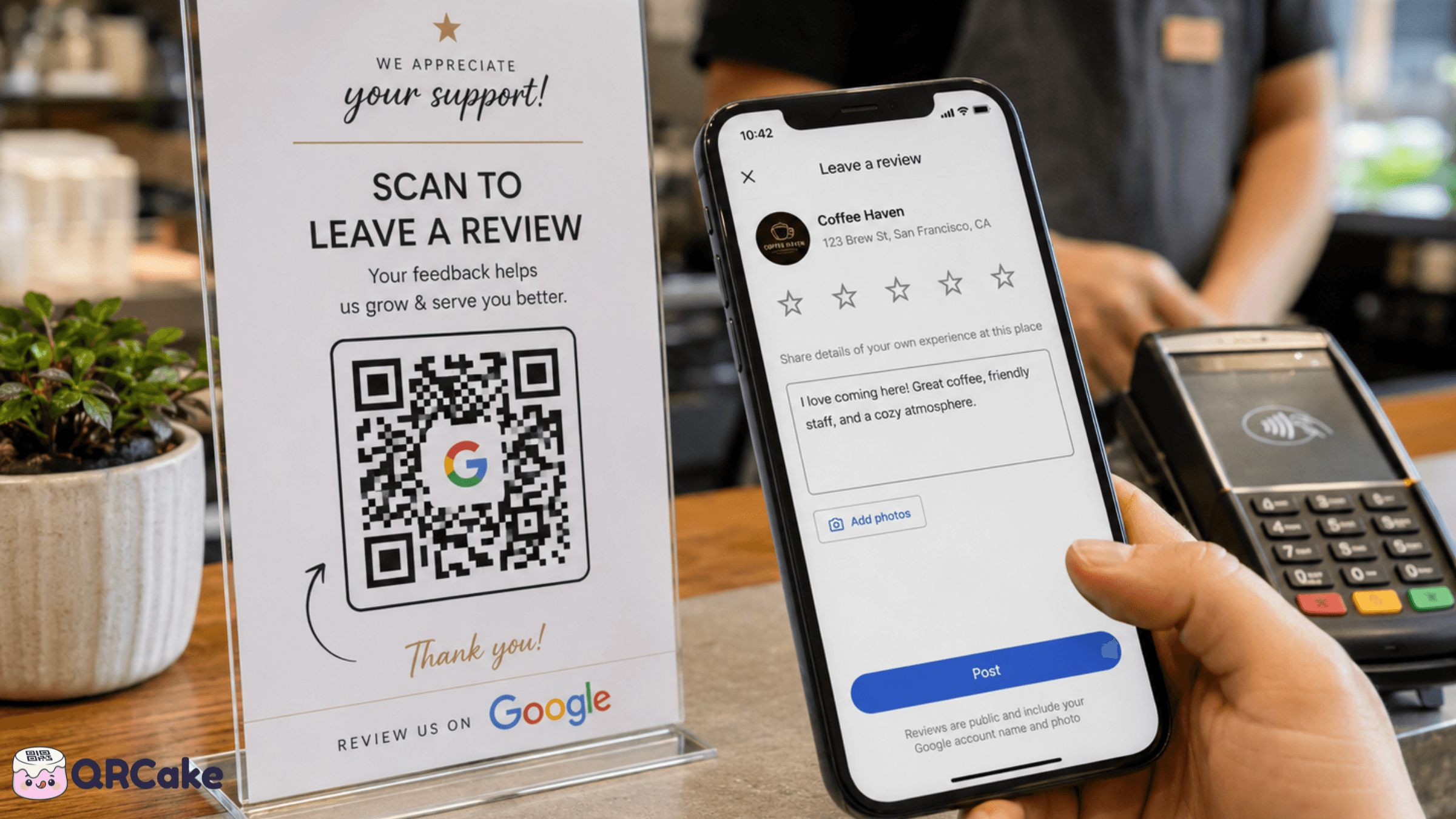
The catch: finding the right Google review URL is less obvious than people expect, and there are review-collection practices that violate Google's policies and can get your reviews removed (or your Google Business Profile suspended). This guide covers the right way to set up a Google review QR code, where to put it, and the practices to avoid.
The 30-second version
- Find your Google review link via Google Business Profile or a Place ID lookup tool.
- Generate a dynamic QR code pointing at that URL.
- Place the code where customers have an idle, satisfied moment - receipts, near the till, on the back of the bill folder.
- Add a short CTA ("Loved it? A 30-second review really helps us").
- Don't gate reviews by sentiment - Google's policy prohibits asking only happy customers for reviews.
That's the whole job. Below: each step in detail.
Step 1: Find your Google review link
Google review URLs follow a pattern where YOUR_PLACE_ID is a unique identifier for your business in Google's database. There are three ways to find it.
Method A: Google Business Profile (the easy way)
If you have a verified Google Business Profile:
- Sign in to business.google.com.
- Select your business.
- From the dashboard, find the "Get more reviews" or "Ask for reviews" option (Google moves these around - search the dashboard if you can't find it immediately).
- Copy the short URL Google provides (e.g., g.page/r/YOUR_CODE/review).
This short URL works just as well as the full one and is easier to handle.
Method B: The Place ID lookup tool
If you don't have Business Profile access or want to find another business's review URL:
- Search "Google Place ID Finder" and use Google's official lookup tool.
- Enter your business name and location.
- Copy the Place ID that appears.
- Construct the URL using the Place ID after `search.google.com/local/writereview?placeid=`.
Method C: Direct from Google Maps
- Open Google Maps and search for your business.
- Click "Reviews" on your business listing.
- Click "Write a review."
- Copy the resulting URL.
This URL is functional but often long and ugly. The Business Profile short URL (Method A) is cleaner if you have access.
Quick sanity check: before generating a QR code, paste the URL into your phone's browser. It should open the Google review form pre-loaded with your business. If it doesn't, the URL is wrong.
Step 2: Generate the QR code
Use a dynamic QR code, not a static one. Three reasons:
- Google occasionally redesigns the review flow, which can change the URL structure. With a dynamic code, you update the destination once in your provider's dashboard. With a static code, every printed copy is broken.
- You can move the destination if Google's URL changes. Static codes are permanent.
- You get scan analytics - useful for seeing which placements actually generate review attempts.
The setup:
- Go to a dynamic QR generator. (QR Cake is one - other providers exist.)
- Choose "URL" or "Website" as the code type.
- Paste your Google review URL.
- Label the code clearly in your dashboard ("Google review - front counter," for example).
- Optionally customize: embed your business logo, use a brand color, add a frame.
- Download as SVG (scales to any size) or PNG.
The whole setup takes about 5 minutes.
If you're using QR Cake specifically: sign in, click "Create QR code," choose the website type, paste your Google review URL, and download. The code is dynamic by default and stays free - so if Google ever changes its review URL format, you edit the destination once and every printed receipt and countertop card keeps working.
Step 3: Place the code where customers have a satisfied, idle moment
Customers leave reviews when they're happy and have a moment. The job of placement is to catch them in both conditions simultaneously.
Best placements:
The bottom of the receipt. Customers look at receipts immediately after paying - they're satisfied (they decided to pay), idle (they're still standing or sitting), and have their phone in hand. Receipt-bottom QR codes have unusually high conversion to actual reviews.
The countertop card at the till. A small standee or stand-up card with the QR and a short CTA. Captures customers in the moment between paying and leaving.
The back of the bill folder (restaurants). When diners are settled, well-fed, and waiting for the bill or change, they have the longest idle moment in the entire dining experience. This is when restaurants see the highest review-conversion rates.
The thank-you card in delivered orders. For e-commerce or delivery businesses, a small thank-you card with a Google review QR has high engagement at the moment of unboxing.
Email signatures from the business owner or staff - not strictly placement, but worth mentioning. A QR code in your follow-up email (when staff send a "thanks for visiting") often outperforms in-person placements for B2B service businesses.
Less effective placements:
- Inside the menu. Customers look at menus to order, not to engage with extras. Reviews compete with the main job.
- On product packaging. Customers unpack and use the product before deciding whether they like it. Asking for a review at unpacking is asking before they have an opinion.
- In the window of the shop. Reviews require an actual purchase experience. Passers-by haven't had one.
Step 4: The call-to-action language matters
The label next to your QR code is the difference between 5% and 25% scan rates.
Working language:
- "Loved it? A 30-second review really helps us."
- "Help us grow with a quick Google review."
- "Enjoyed your visit? We'd love a review."
- "Scan to leave a Google review - takes 30 seconds."
Language to avoid:
- "Please review us." (Generic, no benefit framing.)
- "We need 5-star reviews!" (Pressures the customer; sounds desperate.)
- "Leave us a positive review." (This is review-gating - see policy section below.)
- Anything implying the review must be positive.
The principles that work:
- Acknowledge the customer's effort. "30 seconds" sets a low time commitment.
- Make it about helping you. Many customers genuinely want to help businesses they enjoyed.
- Don't condition on sentiment. Asking for "5-star reviews" or "a positive review" violates Google's policies.
Google's review policies - what's allowed and what isn't
This is the section most "how to get more Google reviews" guides skip, and it's the most important one. Google's policies on review collection are strict, and violations can result in reviews being removed or your Business Profile being penalized.
What's allowed:
- Asking customers for reviews. Generally, yes.
- Providing a convenient method to leave a review (like a QR code).
- Following up with customers via email or in-person to ask for reviews.
- Thanking customers who leave reviews.
What's not allowed (review-gating):
- Asking only satisfied customers to review. If you screen customers ("Are you happy with our service?" - only the "yes" customers get the review link), this is review-gating. Google's policies explicitly prohibit it.
- Offering incentives for reviews. Discounts, gifts, or other rewards in exchange for reviews are prohibited.
- Asking for "positive" or "5-star" reviews specifically. The ask must be open - for a review, not for a particular kind of review.
- Discouraging negative reviews. You can't ask unhappy customers to contact you instead of reviewing.
- Reviewing your own business or asking employees to review.
- Soliciting reviews in bulk from purchased lists or third-party services.
What's risky but not strictly prohibited:
- Asking immediately after a transaction. Allowed, but immediate-post-transaction reviews look less authentic to Google's algorithms. Reviews left days later tend to carry more weight.
- Showing customers how to leave a review. Allowed, but if you stand over their shoulder, it doesn't feel genuine.
Penalties for violations:
- Reviews flagged as inauthentic are removed.
- Repeated violations can result in your Business Profile being suspended.
- In serious cases, your business can be removed from Google Search and Maps.
The safe approach: ask every customer, make it easy, but don't gate by sentiment or offer incentives. The QR code on every receipt or countertop card is allowed and effective. The QR code shown only to customers who said they were happy is review-gating and risky.
Step 5: Measure and iterate
Dynamic QR codes give you scan analytics. Use them to figure out which placements actually generate reviews.
The metrics that matter:
- Scan count per placement per week. Compare across different placements (receipt vs countertop vs bill folder) to find the highest-performing spot.
- Scan-to-review conversion rate. You'll have to estimate this - Google doesn't tell you which review came from which QR scan. Use approximation: divide new reviews by total scans during the same period.
- Time-of-day patterns. When are scans happening? This tells you about customer behavior even if not all scans convert to reviews.
Typical performance:
- Receipt-bottom placement: 5-15% of receipts scanned.
- Countertop card: 2-8% of customers scan.
- Bill folder placement: 8-20% of bills scanned.
- Of those scans, 20-40% typically convert to actual reviews left.
Performance varies enormously by business type, customer demographic, and the strength of the customer's experience. A great visit drives reviews regardless of placement; a mediocre one drives few even with perfect placement.
Common Google review QR code mistakes
Mistake 1: Linking to the homepage instead of the review form. Customers won't navigate to leave a review. The QR has to land directly on the review form with your business pre-loaded.
Mistake 2: Static QR code linking to Google's review URL. Google occasionally redesigns the URL structure. Dynamic codes survive these changes.
Mistake 3: Review-gating by sentiment. Asking only happy customers is against Google's policies.
Mistake 4: Offering incentives. "Get £5 off when you leave a review" is prohibited.
Mistake 5: Generic CTA. "Please review us" outperforms nothing, but is significantly outperformed by benefit-led language like "Loved it? 30 seconds really helps."
Mistake 6: Placement where customers aren't satisfied. Asking before a customer has had a chance to form an opinion (e.g., at product unpacking before they've tried it) is futile.
Mistake 7: Forgetting other platforms. Trustpilot, Yelp, TripAdvisor, and industry-specific review sites also matter. For a small business with low review counts overall, a "multi-review" landing page that lets customers choose where to leave the review can capture more total reviews. Just don't gate by sentiment.
Mistake 8: Not responding to reviews. Both positive and negative. Responses are visible to other customers and improve perceived service quality. Set up an alert and respond within 24 hours.
Frequently asked questions
Is it allowed to ask customers for Google reviews? Yes, as long as you ask everyone (not just satisfied customers), don't offer incentives, and don't specify the type of review you want.
Is offering a discount for a review allowed? No. Google's policies explicitly prohibit incentivised reviews. Reviews left for incentives may be removed and your Business Profile penalized.
Can I ask customers to remove a negative review? You can respond publicly to negative reviews and try to address the customer's concern. You can't ask Google to remove a review just because it's negative.
What's the difference between a Google review link and a Google review QR code? They're the same thing - the QR code encodes the link. The QR code's only purpose is to make the link easier to access without typing.
Will my QR code work outside my country? Yes. Google's review URL is global; customers from any country can use it to leave a review, as long as they have a Google account.
Do customers need a Google account to leave a review? Yes. This is a barrier - some customers won't sign in or create an account. You can't fix this; it's a Google requirement.
How many Google reviews do I need? There's no magic number. The threshold for "credible" varies by industry - restaurants need 50+ to look reasonable, while a small consultancy might be fine with 15. The relevant comparison is your local competitors.
Can I share one QR code across multiple business locations? No - each location has its own Place ID and review URL. Generate a separate QR code per location.
Should I use a custom domain for my Google review QR code? Yes, if you have the option. A custom domain (reviews.yourbusiness.com) looks more professional than a generic QR provider's domain, and the address on your print stays yours.
What's the best way to encourage reviews without violating policies? Ask every customer warmly, make leaving a review easy via QR code, and provide great service. Reviews follow naturally. Shortcuts (incentives, gating) carry penalty risk and often backfire.
Bottom line
A Google review QR code is one of the highest-ROI things a small business can set up. The whole job takes 30 minutes. The placement matters, the CTA language matters, and most importantly, the policies matter - review-gating and incentives carry real penalty risk.
Set up the code, place it at points where customers are satisfied and idle, ask every customer (not just the happy ones), and let great service do the work. The reviews compound from there.
Generate your free Google review QR code
Google Review QR Code Generator
Get more Google reviews with a free Google review QR code. Customers scan, tap Google, Trustpilot or Tripadvisor and reach your review form. Edit links anytime.

About the QR Cake team
Written by the QR Cake team - the people building QR Cake, a dynamic QR code platform used for editable print campaigns, Canva QR codes, scan analytics, and long-lived QR redirects that keep working after subscriptions end.
Learn more about QR CakeFrequently asked questions
- Is it allowed to ask customers for Google reviews?
- Yes, as long as you ask everyone (not just satisfied customers), don't offer incentives, and don't specify the type of review you want.
- Is offering a discount for a review allowed?
- No. Google's policies explicitly prohibit incentivised reviews. Reviews left for incentives may be removed and your Business Profile penalized.
- Can I ask customers to remove a negative review?
- You can respond publicly to negative reviews and try to address the concern. You can't ask Google to remove a review just because it's negative.
- Do customers need a Google account to leave a review?
- Yes. This is a barrier - some customers won't sign in or create an account. It's a Google requirement, not something you can change.
- Can I share one QR code across multiple business locations?
- No - each location has its own Place ID and review URL. Generate a separate QR code per location.
- What's the best way to encourage reviews without violating policies?
- Ask every customer warmly, make leaving a review easy via QR code, and provide great service. Reviews follow naturally. Shortcuts like incentives or gating carry penalty risk.
Related Articles
Keep reading practical QR code guides, examples, and optimization tips.
15 QR Code Call-to-Action Examples That Increase Scans (2026)
An unlabelled QR code gets a fraction of the scans of a labeled one. The CTA next to the code is the highest-ROI editorial change you can make to any QR program.
QR Code Analytics: The Complete Guide to What to Track and How to Use It (2026)
QR analytics tell you the scan happened; your destination-page analytics tell you what mattered. Wire them together and you have the full picture.
QR Codes for Small Business: 12 Practical Uses That Actually Work (2026)
Most small businesses don't need 30 QR codes scattered across every customer touchpoint. They need 2 or 3 in places customers actually scan, pointing at things customers actually want.