How to Scan a QR Code: iPhone, Android and Screenshots (2026)
Scan QR codes with iPhone, Android, from a screenshot, on a computer screen, and on older phones - with troubleshooting for codes that won't scan.
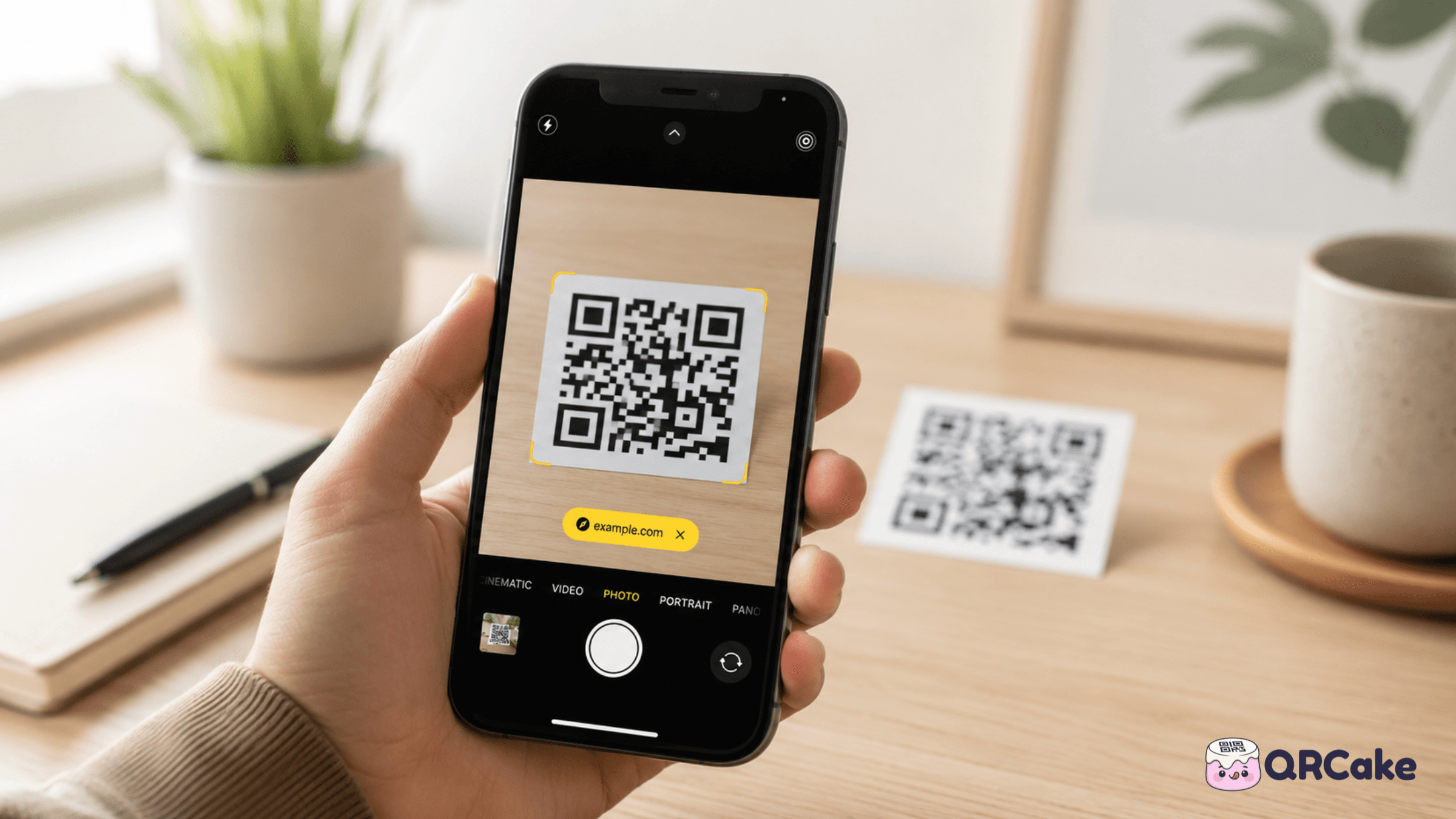
That's the simple answer. The longer answer covers older phones, scanning from screenshots when the code is on the same device you're holding, scanning a QR code displayed on a computer screen, and what to do when scanning fails for reasons that aren't obvious.
This guide covers all of it.
The 30-second version
The simplest answer for almost every phone:
- iPhone (iOS 11 and later): Open the Camera app, point at the code, tap the yellow banner that appears.
- Android (8.0 and later): Open the Camera app or Google Lens, point at the code, tap the result.
- From a screenshot on the same phone: Save the image, open it in Photos (iPhone Live Text) or Google Lens (Android), and tap the detected link.
- From a QR shown on another screen: Same camera method - phones happily scan codes from a laptop or TV screen.
- No camera available? The URL printed under the code is the destination - type it into any browser.
- Still not scanning? Almost always size, lighting, contrast, or a smudged camera lens - not the phone.
If the camera does not detect a code within three seconds, the issue is on the printed-code side, not the device side.
iPhone: how to scan a QR code
iPhones running iOS 11 or later (released in 2017) can scan QR codes with the built-in Camera app. Almost every iPhone in active use today qualifies.
The basic method:
- Open the Camera app.
- Make sure the rear-facing camera is selected (not the selfie camera).
- Point the camera at the QR code. You don't need to fill the frame - about a third of the frame is fine.
- Wait for a yellow notification banner to appear at the top of the screen. This usually happens in under a second.
- Tap the banner to open the QR code's destination.
If the banner doesn't appear, try:
- Moving closer (or further away). The ideal distance depends on the code's size - see the section below on size and distance.
- Tilting the phone slightly to reduce glare on the printed code.
- Tapping on the code in the viewfinder to refocus the camera.
- Cleaning the camera lens. A smudged lens is the most common cause of "why won't this scan?"
If you'd rather not use the Camera app - for example, if you want a dedicated QR scanner - iPhones also have a Code Scanner option in the Control Centre:
- Swipe down from the top right (or up from the bottom on older iPhones) to open Control Centre.
- If Code Scanner isn't there, add it via Settings → Control Centre → Code Scanner.
- Tap the Code Scanner icon and point at the code.
The advantage of Code Scanner over the Camera app: it doesn't take photos by accident, and the scan-to-destination is slightly faster.
Android: how to scan a QR code
Android is more fragmented than iPhone, so the method depends on your phone's manufacturer and Android version. Here are the reliable paths.
Method 1: The built-in Camera app (most modern Androids). Phones running Android 9 or later usually scan QR codes directly from the Camera app, similar to iPhones. Open the Camera app, point at the QR code, and a notification or pop-up appears with the code's destination. Tap to open.
If nothing happens, check your camera settings - some manufacturers (Samsung, Xiaomi, OnePlus) hide QR scanning behind a setting. Look for "Scan QR codes" or "Smart suggestions" and toggle it on.
Method 2: Google Lens (works on any Android with Google services). Open the Google app (or long-press the home button on Pixel phones), tap the Lens icon, point at the QR code or upload an image. Lens reads the code and offers to open it.
Method 3: Bixby Vision (Samsung phones specifically). Older Samsung Galaxy phones use Bixby Vision instead of Google Lens. Open the Camera app, tap Bixby Vision in the camera modes, and point at the code. Newer Samsung phones default to Google Lens.
Method 4: Third-party QR scanner app (last resort). If none of the above work - typically on very old Androids - install a third-party scanner. The trustworthy ones are TeaCapps QR & Barcode Scanner and Kaspersky QR Code Reader. Both are free, ad-light, and don't ask for permissions they don't need. Avoid scanner apps with excessive ad SDKs or permissions to your contacts.
How to scan a QR code from a screenshot or saved image
This is the case most guides skip. You're scrolling through a website or Instagram, you see a QR code, but you're holding the same phone the code is displayed on - there's no second device to point a camera at it.
On iPhone (iOS 16+):
- Take a screenshot of the QR code (press Side button + Volume Up).
- Open the screenshot in Photos.
- Long-press on the QR code in the image - iOS recognises it and offers to open the link directly.
On older iOS versions, you can save the image and then use the Code Scanner from Control Centre, pointing at the saved image displayed on screen. Clunky but works.
On Android:
- Take a screenshot or save the image.
- Open Google Lens (the Google app or Photos).
- Tap the gallery/image icon and select the screenshot.
- Lens reads the code and offers to open it.
Some Android phones also let you long-press the screenshot preview when it appears in the bottom corner - newer Pixels and Samsungs offer direct QR detection here.
How to scan a QR code on a computer screen
If the QR code is displayed on your laptop or desktop monitor, the easiest method is to point your phone at the screen and scan it like you would a printed code. Make sure your screen brightness is high enough, you're far enough from the screen that the camera can focus (usually 15-30 cm), and the code fills enough of the frame.
Reflections from the screen can break the scan. If you're struggling, tilt the phone slightly off-axis or dim other room lights.
If you can't use a phone, take a screenshot on the computer and use a web-based QR decoder (upload the image), or install a browser extension from your browser's verified extension store that can scan QR codes directly from a webpage.
How to scan multiple QR codes quickly
For bulk scanning - for example, an event check-in, a stock-take, or a series of museum exhibits - the built-in Camera apps work but are slower than purpose-built apps.
Faster options:
- iOS Code Scanner from Control Centre is slightly faster than the Camera app for back-to-back scans.
- TeaCapps QR & Barcode Scanner on Android has a continuous-scan mode that keeps the camera open and logs each scan.
- Trello, Notion, and most note-taking apps have built-in QR scanners that can log scanned URLs to a list automatically.
For genuinely high-volume work (inventory, ticketing), purpose-built scanner apps from your industry's POS or ticketing vendor will outperform any general-purpose tool.
Older phones: scanning when there's no built-in support
If you have an iPhone older than the iPhone 7 or an Android older than Android 8, the Camera app may not have QR support.
Options:
- Install a third-party QR scanner from the App Store or Play Store.
- On older iPhones, Google Lens inside the Google app works back to iOS 13.
- On older Androids, TeaCapps QR & Barcode Scanner is reliable.
If your phone is too old to install modern apps, the most practical option is to borrow someone else's phone - or, occasionally, type the URL printed next to the code (most well-designed codes include the URL as a fallback).
Why scanning sometimes fails
A scan failure is almost always one of seven things:
- Lens is dirty. Wipe the camera lens with a microfibre cloth. This is the #1 cause.
- Code is too small or too far away. The general rule: the camera needs to see the code clearly enough that the small squares (the data modules) are distinguishable. For a code at arm's length, the printed code should be at least 2cm × 2cm.
- Low contrast. Light-coloured codes on light backgrounds - or vice versa - break scans even on modern phones.
- Glare or reflection. Glossy paper or shiny surfaces reflect light directly into the camera. Tilt 15-20° to break the reflection.
- Code is damaged. Folded, scratched, or partially covered codes often won't scan, even with QR's built-in error correction.
- Code is broken on the back end. If the code was created with a dynamic provider and the provider's account is suspended or the trial expired, the code resolves to an error page (or doesn't resolve at all).
- Phone settings. Some Android manufacturers disable QR scanning by default. Check your camera settings.
If you've tried all of the above and the code still won't scan, the issue is almost certainly with the code itself, not your phone. See our full troubleshooting guide for the producer's side of this problem.
Is it safe to scan random QR codes?
A QR code is just a URL (or sometimes a vCard, WiFi credential, or plain text). Scanning a code doesn't run code on your phone - it just opens whatever the code points at.
That said, "QR phishing" (also called "quishing") is real. The pattern: a scammer slaps a QR code sticker over a legitimate code on a parking meter, restaurant table, or product label, and the scammed code points at a phishing site that asks for payment details.
To stay safe:
- Read the URL before tapping. Both iOS and Android preview the URL before opening it. Look for misspellings, weird subdomains, and HTTP (instead of HTTPS).
- Don't enter credentials or payment info on a page you reached via an unverified QR code.
- Be especially cautious of codes on public infrastructure - parking meters, EV chargers, and ATMs are the highest-risk surfaces because attackers can easily apply stickers.
- If a QR code is suspiciously laminated over an existing one, don't scan it. Report it to the venue.
For your own QR codes, the equivalent best practice is to use a custom domain so customers can verify the destination looks legitimate before tapping. Providers like QR Cake support custom domains on dynamic codes, which makes the URL preview match your brand instead of a generic third-party prefix.
Frequently asked questions
Can iPhones really scan QR codes without an app? Yes, since iOS 11 (2017). Just open the Camera app and point it at the code.
Do I need to take a photo of the code? No. The camera reads the code in real-time. A notification appears as soon as the code is recognised. If you've taken a photo by accident, no harm done.
Can I scan a QR code without internet? You can scan the code without internet - the phone just reads the data encoded in the pattern. But if the code contains a URL, opening that URL needs internet. For WiFi or contact-info codes, no internet is needed for the action itself.
Why does my Android phone open Google Lens instead of the link directly? On some Android phones, the camera passes QR detection through Google Lens by default. Lens then shows the URL and asks you to confirm before opening. This is a deliberate safety step.
Can I scan a QR code from a video? Yes, if you pause the video at a frame where the code is clearly visible. Scan it like any image - point your phone at the screen, or screenshot the frame and use the methods above.
How far away can I scan a QR code from? The general rule is 10× the code's width. A 5cm code is scannable from about 50cm; a 30cm code is scannable from about 3 metres. Beyond that, the code becomes too small in the camera frame to be recognised.
Why doesn't my old phone scan QR codes? Older phones (pre-2017 iPhones, pre-Android 8 phones) don't have built-in QR detection in the Camera app. Install a free QR scanner app from the official app stores.
Can I scan QR codes with my smartwatch? Some Apple Watches and Wear OS watches can scan QR codes, but it's clunky compared to a phone. Most users find it faster to use the phone for any actual scanning task.
Is there a way to test if my own QR code actually scans? Yes - and you should. Print one of your codes at the size you plan to use, then scan it with at least one iPhone and one Android phone in the lighting conditions where it'll live. Catching scan problems before printing 5,000 stickers saves enormous time and money.
When to create your own QR codes
If you've landed here because you want to create a QR code rather than just scan one: any free dynamic QR code generator works. The advantages of a dynamic generator (over a static one) are that you can change the destination later, see scan analytics, and the code is more compact and easier to scan.
QR Cake is one option that offers free dynamic codes with no expiry - useful if you want to print the code once and edit where it points later without buying a subscription.
Create your own free QR code
Ready to make your own QR code?
Create a dynamic QR code you can edit after printing. Free to start, no card required, unlimited scans, and your codes never expire.

About the QR Cake team
Written by the QR Cake team - the people building QR Cake, a dynamic QR code platform used for editable print campaigns, Canva QR codes, scan analytics, and long-lived QR redirects that keep working after subscriptions end.
Learn more about QR CakeFrequently asked questions
- Can iPhones scan QR codes without an app?
- Yes, since iOS 11 in 2017. Open the Camera app, point at the code, and tap the notification banner that appears.
- Can I scan a QR code without internet?
- You can read the code without internet. Opening a URL it contains requires internet, but WiFi or contact-info codes don't need it.
- How far away can I scan a QR code from?
- The general rule is 10 times the code's width. A 5cm code is scannable from about 50cm; a 30cm code is scannable from about 3 metres.
- How do I scan a QR code from a screenshot on the same phone?
- On iPhone, long-press the QR code inside the screenshot in Photos. On Android, open the screenshot in Google Lens and Lens will read the code.
- Why does my old phone not scan QR codes?
- Older phones (pre-2017 iPhones, pre-Android 8) don't have built-in QR detection. Install a free QR scanner app from the official app stores.
- Is it safe to scan random QR codes?
- Scanning is safe; the code is just data. The risk is the URL itself. Read the previewed URL before tapping and avoid entering credentials on pages reached via unverified codes.
Related Articles
Keep reading practical QR code guides, examples, and optimization tips.
QR Codes for Real Estate: The Complete 2026 Guide for Agents and Brokers
Real estate is one of the highest-fit verticals for QR codes. Buyers approach a property at exactly the moment they're most curious - a well-placed code converts that into information access faster than any other channel.
QR Codes on Product Packaging: The 2026 Guide (Use Cases, Regulations, and Pitfalls)
Most major CPG brands now ship products with QR codes. The interesting question is no longer whether to use a code, but what for - and most teams underperform here.
How to Create a Google Review QR Code (Step-by-Step, 2026)
Google reviews drive local search rankings, trust, and conversion. A QR code that takes customers directly to your review form removes the single biggest barrier to actually leaving one.