Business Card QR Code Guide: Size, Placement, and What to Link To (2026)
Where to put a QR code on a business card, what size, what to link to, and how to make it survive a job change without reprinting.
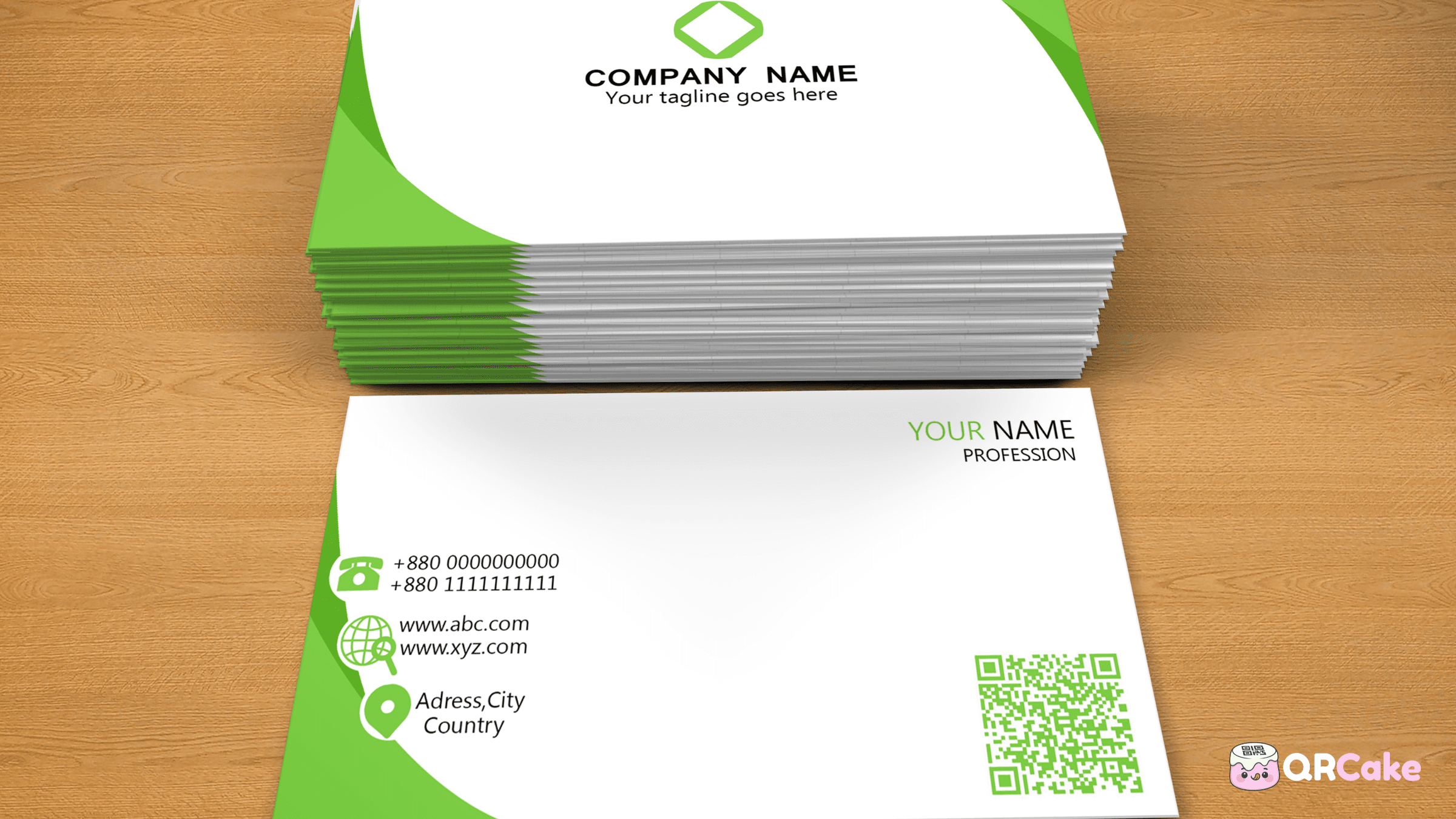
This guide covers where to put the code, what to link it to, what size it needs to be, and the design decisions that separate a useful business-card QR from a vanity one.
The 30-second version
- Use a dynamic QR code, not a static one - your details will change, the printed card shouldn't have to.
- Print at 2.5-3 cm minimum. Smaller looks elegant in the design comp; it fails in the real world.
- Place it on the back of the card, bottom-right or centred. Front of the card if your card has minimal text.
- Link to a single digital business card page - not just a bare vCard download, not your homepage.
- Test it on at least one iPhone and one Android before printing the whole batch.
That's the whole job. Everything below is detail.
Why every business card should have a QR code
A printed business card is a fixed snapshot of who you were when you printed it. It includes your name, phone number, email, address, role, and maybe a logo or strapline. Six months from now, at least one of those is wrong.
Without a QR code, the card becomes a liability - the recipient might call an old number, email a deprecated address, or visit a website that no longer exists.
With a dynamic QR code, the printed card stays the same and what's behind the code updates with you. The card never gets stale.
There are also two practical benefits beyond longevity:
- Recipients save your contact instantly. Scan the code, tap "Add to Contacts," done. No retyping your number into their phone, no risk of typos.
- You see who actually scans. Dynamic codes give you scan analytics - useful for understanding which networking events, which trade shows, and which clients actually follow up after meeting you.
What to link to (the most important decision)
The single biggest design choice is what the QR code points at. Three reasonable options, in order of usefulness:
Option 1: A dedicated digital business card page.
The best answer for most people. Build a single page on your domain (or use a tool that generates one) showing your name, role, phone, email, LinkedIn, current photo, and a short bio. Make it mobile-optimised, fast-loading, and visually clean. The QR code on your printed card points at this page.
The advantages: you control the layout, you can add CTAs like "Book a call" or "Download my CV," and the page can include "Save to Contacts" alongside the visible content. The page can be updated without reprinting cards.
Option 2: A direct vCard file (.vcf).
The QR code can encode a complete vCard directly. Scanning it triggers the phone to offer "Add to Contacts" with your details pre-filled.
The advantages: zero loading time, works offline, no website needed.
The disadvantages: harder to update (the vCard is encoded into the code itself if you used a static code; with a dynamic code you can change it), no analytics on what happens after the scan, and the experience can feel awkward - some phones don't preview the contact before saving, which makes recipients hesitant.
Option 3: Your website's homepage or social profile.
The most common choice and usually the worst. Your homepage is not optimised for "person just met you, scanned your card." It's optimised for "stranger searching for your services." The recipient lands on something irrelevant to the conversation you just had.
If you must link to a site, link to your About page or LinkedIn profile, not the homepage.
The honest recommendation: build a dedicated digital business card page (Option 1). It's a one-hour setup that lasts a career.
Where to place the QR code
The placement decision involves real-estate trade-offs because business cards are small.
Back of the card. The standard choice. Frees up the front for your name, logo, and key contact info. Most recipients flip the card to look for additional info anyway.
Front of the card, bottom-right corner. Works if your front has minimal text - a name, a role, and a logo. Avoid if the front is information-dense.
Front of the card, centre. Works for minimalist designs where the QR code is the dominant element. Common for design-led professions where the card itself is part of the portfolio.
Don't put it in the centre of the back if you also have content on the back. The QR code competes with the text. Pick one or the other.
The "best" placement decision depends on your card's existing design. The universal rule: keep at least 3 mm of blank margin (the quiet zone) around the code on every side. Without that margin, scan reliability drops.
What size to print
The minimum reliable size for a business-card QR code is 2 cm × 2 cm. The safe, comfortable size is 2.5-3 cm.
On a UK standard business card (85 × 55 mm), a 3 cm code takes up about a third of the card width. This sometimes feels too dominant to design teams who want the code to be discreet. The honest answer: a 3 cm code that scans on the first try is better than a 1.5 cm code that frustrates the recipient and gets discarded.
If you absolutely need a smaller code, you have two options to keep scanability:
- Use a dynamic code with a short URL. The encoded URL stays short regardless of where it ultimately points, so the QR pattern stays sparse and forgiving at small sizes. A static code containing a full vCard at 2 cm often fails to scan; a dynamic code pointing to the same vCard at 2 cm usually works.
- Print at very high contrast. Black-on-white at 2 cm is far more reliable than dark-grey-on-cream at the same size.
Smaller than 2 cm is unreliable on real-world phones in real-world lighting. Don't do it.
Design integration: making the code part of the card
A QR code doesn't have to look like an unwelcome black square pasted onto your design. Modern QR generators support enough customisation that the code can feel intentional.
Customisation options most generators support:
- Brand colour. Use a dark colour (deep navy, forest green, burgundy) that matches your brand. Avoid mid-tones and pastels - they wreck contrast.
- Logo in the centre. Most generators let you embed a small logo (typically up to 20-25% of the code's area) in the centre. This pulls the code into your brand without compromising scanability.
- Custom frame and label. A small frame around the code with "Scan to save my contact" or your name keeps the code intentional rather than utilitarian.
- Eye shape and module shape. Some advanced generators let you change the squares at the three corners (the "eyes") and the data modules themselves into different shapes. Use sparingly - the more you depart from standard squares, the more some older Androids struggle to scan.
The design rule: customise the code so it feels like part of your card, but don't customise it so heavily that it stops being recognisable as a QR code.
Test before printing the batch
The 5-minute test before sending the file to your printer:
- Print one card at home or at a print shop sample.
- Scan with an iPhone (Camera app).
- Scan with an Android phone (Camera app or Google Lens).
- Scan at arm's length, then at the typical distance someone holds a card (about 25-30 cm).
- Scan in a dim room - restaurants, conferences, and bars are often dimly lit, which is exactly when business cards get exchanged.
- Open the destination and confirm the page loads in under 3 seconds on mobile.
If anything fails, fix it before printing 500 of them. Catching a contrast or sizing problem on one sample card costs nothing. Catching it after printing the full batch costs the whole batch.
Industry-specific considerations
Different professions have different best practices for what to link to.
Sales, consulting, business development. Link to a dedicated digital card page with a clear "Book a 15-min intro call" CTA. The card itself is part of your funnel - make the QR scan the entry point to your booking flow.
Real estate agents. Link to a page with your active listings plus contact info. Recipients often scan a card weeks or months after meeting you - make the destination relevant whenever they finally check.
Creative freelancers (designers, photographers, writers). Link to a portfolio page, not a homepage. The recipient wants to see your work, not navigate your site.
Doctors, lawyers, accountants. Link to a page with your contact info, current credentials, and a "Schedule appointment" or "Send secure message" CTA. Avoid linking directly to vCard download - many professionals add and remove credentials over time, and a updatable page handles this better.
Job seekers / career networking. Link to your LinkedIn profile or a hosted CV page. Avoid linking to your current employer's contact page - that's their site, not yours.
Tradespeople (plumbers, electricians, builders). Link to a page with your phone number, services list, recent reviews, and a "Get a quote" CTA. Reviews matter here more than in most professions.
Common business card QR code mistakes
Mistake 1: Static code with a full vCard encoded. The code becomes too dense to scan at typical business-card sizes. Use a dynamic code or a short URL.
Mistake 2: Code too small. Below 2 cm, scan rates collapse. The design might look beautiful in the comp; the working experience is worse than no code at all.
Mistake 3: Linking to a homepage. The recipient lands on something irrelevant to the conversation they just had with you.
Mistake 4: No fallback contact info on the card. What if the recipient's phone is dead? The card still needs your phone number and email printed visibly, in addition to the QR.
Mistake 5: Low contrast for design reasons. A muted, brand-matched code that doesn't scan defeats the purpose.
Mistake 6: Not testing on a real card. Designers test in InDesign or Figma; the printed card behaves differently. Always print a sample first.
Mistake 7: Code generated on a provider that disables it when you stop paying. Three years from now, do you remember which provider made this code? If they've disabled your free trial, every card in your wallet is now broken. Use a provider whose codes stay live after cancellation - QR Cake is one of the few free dynamic providers that meets that bar, which matters more on a business card than on almost any other printed asset.
Mistake 8: Hard-to-update destination. If updating your contact info requires generating a new code (which it does for static codes), you'll be tempted to skip the update. Dynamic codes remove the friction.
Frequently asked questions
Should I use a vCard or a URL for my business card QR code? A URL pointing to a digital business card page is usually better. It gives you more control over the layout, lets you add CTAs, and shows you analytics. A direct vCard works if you want instant offline contact-saving with no website dependency.
What if I change jobs after printing the cards? With a dynamic code, you change the destination in your provider's dashboard and the same printed card now points at your new info. With a static code, you'd need to reprint.
Will the QR code make my business card look unprofessional? Designed well, no. A small, brand-coloured code with a clean logo and a "Scan to save my contact" label looks intentional and modern. Designed badly (oversized, off-brand colour, no context), yes.
Can I have multiple QR codes on one business card? You can, but you shouldn't. Multiple codes confuse recipients about which to scan. If you want to share multiple destinations (LinkedIn, portfolio, calendar), use one code pointing to a single page that links to all of them.
Do I need to keep printed contact info if I have a QR code? Yes. Some recipients won't scan, some have dead phones, some are in poor signal areas. Always print your phone number and email visibly, with the QR as a complement, not a replacement.
How do recipients save my contact after scanning? Depends on what the code links to. A vCard QR triggers the phone's "Add to Contacts" flow directly. A URL QR opens a webpage - that page should include a clear "Add to Contacts" button that downloads a vCard file.
Can I track how many people scan my business card QR? Yes, with a dynamic QR provider. You'll see total scans, unique scans, geographic distribution, and device types. Useful for figuring out which events and which networking efforts actually pay off.
What's the best way to design a QR code for a luxury or minimalist business card? Use a dark colour matching the card's accent palette (deep navy on cream, charcoal on white), embed a small logo in the centre, and keep the size at 2.5 cm minimum. Don't go smaller for aesthetic reasons; it'll just frustrate recipients.
Will iPhone and Android scan my business card QR the same way? The scanning experience is essentially identical on modern phones - open the camera, point at the code, tap the notification. Older Android phones may struggle with non-standard QR designs (heavy customisation, unusual eye shapes), so keep customisation modest.
What about double-sided cards - should the QR go on the front or back? Usually back. The front carries your name and the visual identity; the back carries the QR plus minimal supporting text. Some minimalist designs put the QR on the front when the front has very little else - that's the exception, not the rule.
Quick start: from zero to a printable card
The 15-minute setup:
- Build a simple digital business card page on your domain or use a single-page builder. Include your photo, name, role, phone, email, social links, and a CTA.
- Generate a free dynamic QR code pointing at that page (QR Cake's free tier is enough - the dynamic code lets you swap in a new title or phone number later without reprinting cards).
- Embed your logo in the centre of the code (optional but recommended).
- Save the code as SVG.
- Drop the SVG into your business card design at 2.5-3 cm.
- Print one sample. Scan-test on iPhone and Android.
- Send to print at volume.
That's it. Your cards now last as long as the design lasts.
Generate a free dynamic QR code for your business card
vCard QR Code Generator
Create a vCard QR code, also called a contact card QR code. One scan shows your photo, phone, email, and address with a Save contact button. Free and dynamic.

About the QR Cake team
Written by the QR Cake team - the people building QR Cake, a dynamic QR code platform used for editable print campaigns, Canva QR codes, scan analytics, and long-lived QR redirects that keep working after subscriptions end.
Learn more about QR CakeFrequently asked questions
- Should I use a vCard or URL for my business card QR code?
- A URL pointing to a digital business card page is usually better. It gives you control over layout, CTAs, and analytics. A direct vCard works if you want instant offline contact-saving with no website dependency.
- What if I change jobs after printing my cards?
- With a dynamic code, change the destination in your provider's dashboard and the same printed card now points at your new info. With a static code, you would need to reprint.
- Do I need to keep printed contact info if I have a QR code?
- Yes. Some recipients won't scan, some have dead phones, some are in poor signal areas. Always print phone number and email visibly, with the QR as a complement, not a replacement.
- Can I track how many people scan my business card QR?
- Yes, with a dynamic QR provider. You'll see total scans, unique scans, geographic distribution, and device types - useful for figuring out which networking efforts actually pay off.
- What's the smallest a business card QR code can be?
- 2 cm × 2 cm is the practical minimum. 2.5-3 cm is the safe, comfortable size. Below 2 cm, scan rates collapse in real-world lighting.
- Should the QR code go on the front or back of the card?
- Usually the back. The front carries name and visual identity; the back carries the QR plus minimal supporting text. Front-of-card QRs work for minimalist designs with very little else on the front.
Related Articles
Keep reading practical QR code guides, examples, and optimization tips.
Social Media QR Codes: An Honest Guide for Instagram, TikTok, LinkedIn, and More (2026)
Social media QR codes are one of the most overhyped QR use cases. They work in narrow contexts and waste attention everywhere else.
QR Code Size Guide for Print: The Definitive 2026 Reference
QR codes fail at small sizes more often than at any other failure mode. The fix is simple: print them big enough. This guide gives you the rules, the numbers, and the minimum sizes by use case.
How to Scan a QR Code: iPhone, Android and Screenshots (2026)
Most phones sold in the last six years can scan a QR code with the built-in camera. This guide covers iPhone, Android, older devices, and the awkward cases like screenshots and computer screens.