How to Create a QR Code for a Link: Website, PDF, or Video
How to turn a link into a QR code that people can actually use: choosing the destination, picking a static or dynamic code, linking to a PDF or a video, designing for scanning, and testing before you print.
How do you turn a link into a QR code?
To turn a link into a QR code, copy the destination URL, paste it into the generator's website or URL field, generate the code, and download the image. Scan that image before you publish it to confirm that it opens the intended destination. This link-to-QR-code process works for any online content that has a web address.
- Copy the full address of the page, starting with https://.
- Open the QR Cake creator and choose the Website type.
- Paste the link, then style the code with colors, a logo, or a frame if you want them.
- Download the code as PNG or SVG. To be able to change the link later, sign in with a free account and save the code first.
- Scan the image with your phone and check that the right page opens.
When converting a hyperlink to a QR code, use the underlying address, not the visible words. For example, copy the destination behind "View our catalog" rather than pasting that label into the generator.
Start by deciding what someone should accomplish after scanning. A flyer advertising a workshop should lead to the workshop's registration page, not leave visitors searching a general homepage. Treat each code as a shortcut to one clear task, and choose the destination accordingly.
Should you use a static or dynamic QR code?
Use a static QR code when the encoded address can stay fixed. Use a dynamic QR code when you may need to change the destination after printing or want scan reporting. A static code contains the URL itself. A dynamic code contains a short link whose destination can be updated without changing the printed pattern.
A fixed address does not require fixed page content. You can still update the information on a webpage you control while keeping its URL unchanged.
Use these questions to guide the choice:
- Will the destination address change? Consider a dynamic code for materials that must outlast a particular campaign page.
- Can you maintain the original webpage? A stable page under your control may make a static code sufficient.
- Do you need reporting? Check which measurements the service actually provides, and on which plan, before selecting it.
- What happens when a plan ends? Ask about continued redirects, account closure, export options, and any usage restrictions.
When you evaluate a dynamic QR code generator, read its terms rather than assuming every editable feature is included. Some services charge for changing a destination, and some switch codes off when a trial ends.
On QR Cake, the free plan includes up to 5 dynamic codes with unlimited scans, and saved codes do not expire. Free scans show a brief ad page before the redirect, and scan analytics are part of the Pro and Business plans. Our dynamic vs static guide covers the trade-off in full.
Build the code around one clear destination
Before opening a generator, write down the intended action: register, watch, read, download, or contact. Then select the page that supports that action with the fewest unnecessary decisions. Keep this goal beside you as you prepare the code and its surrounding copy.
Follow this workflow:
- Open the destination on your phone. Check the page title, content, navigation, and intended action. Resolve obvious problems before directing people there.
- Copy the final address. Prefer the published destination over an editing screen, temporary preview, or account dashboard.
- Choose the code type. Decide whether a fixed URL is sufficient or whether you want to be able to change the destination later.
- Generate a simple version first. Establish a working baseline before experimenting with colors, frames, or logos.
- Download a suitable file. Ask your designer or printer which format fits the intended placement. SVG stays sharp at any print size, and PNG suits screens and documents.
- Test the finished layout. Scan the code after placing it in the actual flyer, label, presentation, or sign, not just inside the generator preview.
Keep a small record containing the destination, image filename, publication locations, and person responsible for maintenance. For multiple campaigns, add a descriptive name such as "Workshop registration, reception poster". Avoid filenames that become meaningless later, such as "final-code-new".
Create a QR code for a PDF document
To create a QR code for a PDF, the document first has to be available at a web address, and that address becomes the code's destination. Linking to a PDF is not the same as downloading the QR image itself as a PDF. The first decides what visitors open. The second is only the file format of the image.
There are two ways to get that address. You can upload the file to a PDF QR code generator, which hosts the document and gives the code a short link to it. Or you can host the PDF yourself, on your website or in cloud storage, and make a website QR code from its share link.
With a share link, pay particular attention to access settings. Google Drive, for example, distinguishes restricted files from files available to anyone with the link, and viewing access from editing access. Choose the permissions that fit the audience rather than sharing an owner's editing link.
Before publishing a QR code for a PDF document:
- Open the sharing link while signed out and check whether the intended audience can access it.
- Review the document on a phone, including small text, tables, and navigation.
- Confirm that the file is the approved version and contains no unintended private information.
- Decide who will maintain the file and its address when a revision is released.
For frequently revised material, use a dynamic code so the printed pattern stays the same while the file changes, or direct visitors to a stable resource page where you can explain the document and identify the current version. How to update the PDF behind a QR code walks through the first option, and the PDF QR code guide covers the format in more detail.
Connect printed materials to useful video
A video-to-QR-code workflow follows the same principle: use the web address of the hosted video or of a page containing it. You are linking to the viewing destination, not putting the video file inside the printed symbol.
For a video on YouTube or Vimeo, paste its link into a website QR code. For a video file of your own, a video QR code generator hosts the upload and plays it in the phone's browser.
Match the video to the moment of scanning. On product packaging, consider a setup demonstration. Beside an exhibit, offer an explanation that adds something visitors cannot see on the label. Avoid sending every audience to an unrelated channel homepage.
Test playback as a visitor, not just as the account owner. Check whether the chosen sharing settings permit viewing, and decide whether any sign-in requirement is appropriate. Add captions and a short text explanation so the essential message does not depend entirely on hearing the audio. The video QR code guide covers this in more detail.
Design for scanning before decoration
Preserve the clear border surrounding the code. DENSO WAVE, the company that invented the QR code, specifies a quiet zone four modules wide on every side, where a module is one small square in the pattern. Keep nearby text, borders, and decorative elements outside that space.
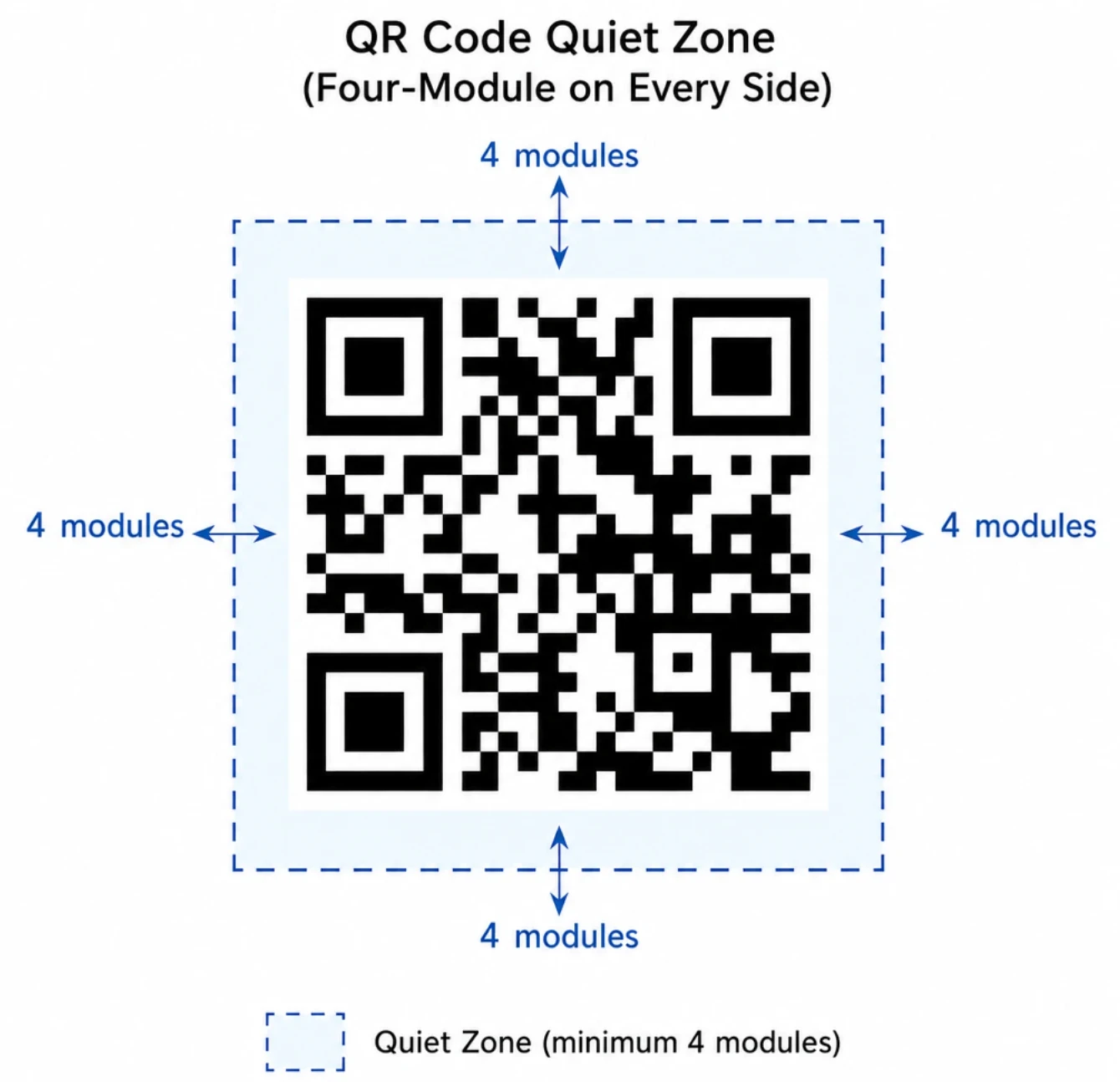
Give the code adequate room in the layout rather than shrinking it to fill leftover space. DENSO WAVE explains that larger modules are easier for scanners to read and that the usable size depends on the printing and scanning conditions. Test your intended size rather than treating one measurement as suitable for every placement. The QR code size guide for print gives starting sizes for common placements.
Start with a plain, dark-on-light design and compare any customized version against it during testing. Keep the pattern square, preserve clean edges, and avoid placing artwork over functional areas. If adding a logo or color makes scanning less dependable in your tests, simplify the design.
Place a specific instruction beside it: "Scan to view the installation guide" is more informative than "Scan me". These call-to-action examples show wording that works. Include a readable alternative address where practical, and provide an ordinary clickable link when publishing digitally.
Test the complete journey before publishing
Make the release decision based on the finished material and destination together. A successful test should include opening the content and completing the intended task, not merely recognizing the code. Ask someone unfamiliar with the project to try it without coaching.
Use this final checklist:
- Correct destination: Confirm the exact page, file, or video, not just the right website.
- Appropriate access: Test outside your signed-in account and review any permission prompts.
- Realistic conditions: Try the final size, surface, placement, lighting, and expected viewing distance.
- More than one device: Include different phones where available rather than relying on your own.
- Clear next step: Check that visitors understand what to do after the page opens.
- Ongoing ownership: Assign someone to recheck the destination after website changes, document revisions, or campaign updates.
If a code does not scan during testing, this troubleshooting guide lists the usual causes.
If you use analytics, decide what success means before launch. Review any available scan reporting alongside the action you actually want, such as a registration or a completed inquiry. Treat the scan as the start of the journey, not the whole outcome.
Make every scan worth the effort
Begin with a useful destination, choose the simplest code setup that meets your maintenance needs, and test the finished result before distribution. Keep the promise beside the code specific and the next step obvious. The goal is not merely to create a scannable image. It is to help someone reach the right information and act on it.
Website URL QR Code Generator
Turn any URL into a dynamic website QR code, free for up to 5 codes. Change the link after printing, or download a static code without making an account.

About the QR Cake team
Written by the QR Cake team - the people building QR Cake, a dynamic QR code platform used for editable print campaigns, Canva QR codes, scan analytics, and long-lived QR redirects that keep working after subscriptions end.
Learn more about QR CakeFrequently asked questions
- How do I turn a link into a QR code?
- Copy the full web address, paste it into the website or URL field of a QR code generator, and download the image it produces. Scan the image with your phone before you publish it to confirm that it opens the right page.
- Is it free to make a QR code for a link?
- Yes. On QR Cake you can download a static code for a link without an account, and a free account includes up to 5 dynamic codes with unlimited scans. Scans of a free dynamic code show a brief ad page before the redirect, and paid plans remove it.
- Can I change the link after the QR code is printed?
- Only if the code is dynamic. A dynamic QR code stores a short link, so you can point it to a new address without reprinting. A static code stores the address itself and cannot be changed, although you can still edit the page at that address.
- Do QR codes for links expire?
- A static QR code never expires, because the address is in the pattern itself. A dynamic code works for as long as its provider keeps the redirect running, and some providers switch it off when a trial or subscription ends. Codes saved to QR Cake do not expire, including on the free plan.
- Can a QR code link to a PDF or a video?
- Yes, as long as the file has a web address. Either host the PDF or video yourself and make a QR code from its link, or upload it to a PDF or video QR code generator that hosts the file and gives the code a short link to it.
- Should I shorten the link before making the QR code?
- Not for a dynamic code, which already stores a short link. For a static code a shorter address helps, because fewer characters make a simpler pattern that is easier to scan at small sizes.
Related Articles
Keep reading practical QR code guides, examples, and optimization tips.
Dynamic vs Static QR Codes: Which One Should You Actually Use? (2026 Guide)
Static codes are fine for about three specific situations. For everything else, dynamic codes save you money, time, and the embarrassment of reprinting flyers because someone changed the landing page URL.
PDF QR Code Guide: Hosting, Sizing, and the Mistakes to Avoid (2026)
Used well, PDF QR codes are a legitimate fit for manuals, white papers, lead magnets, and any printed marketing where you want to deliver a detailed document on demand. Used badly, they create some of the worst QR experiences on the internet.
15 QR Code Call-to-Action Examples That Increase Scans (2026)
An unlabelled QR code gets a fraction of the scans of a labeled one. The CTA next to the code is the highest-ROI editorial change you can make to any QR program.